

One click
Mark a contact Do Not Call from their page or from a call.
Mark anyone who asks not to be contacted. A clear banner shows on their contact page, and you stay accountable.
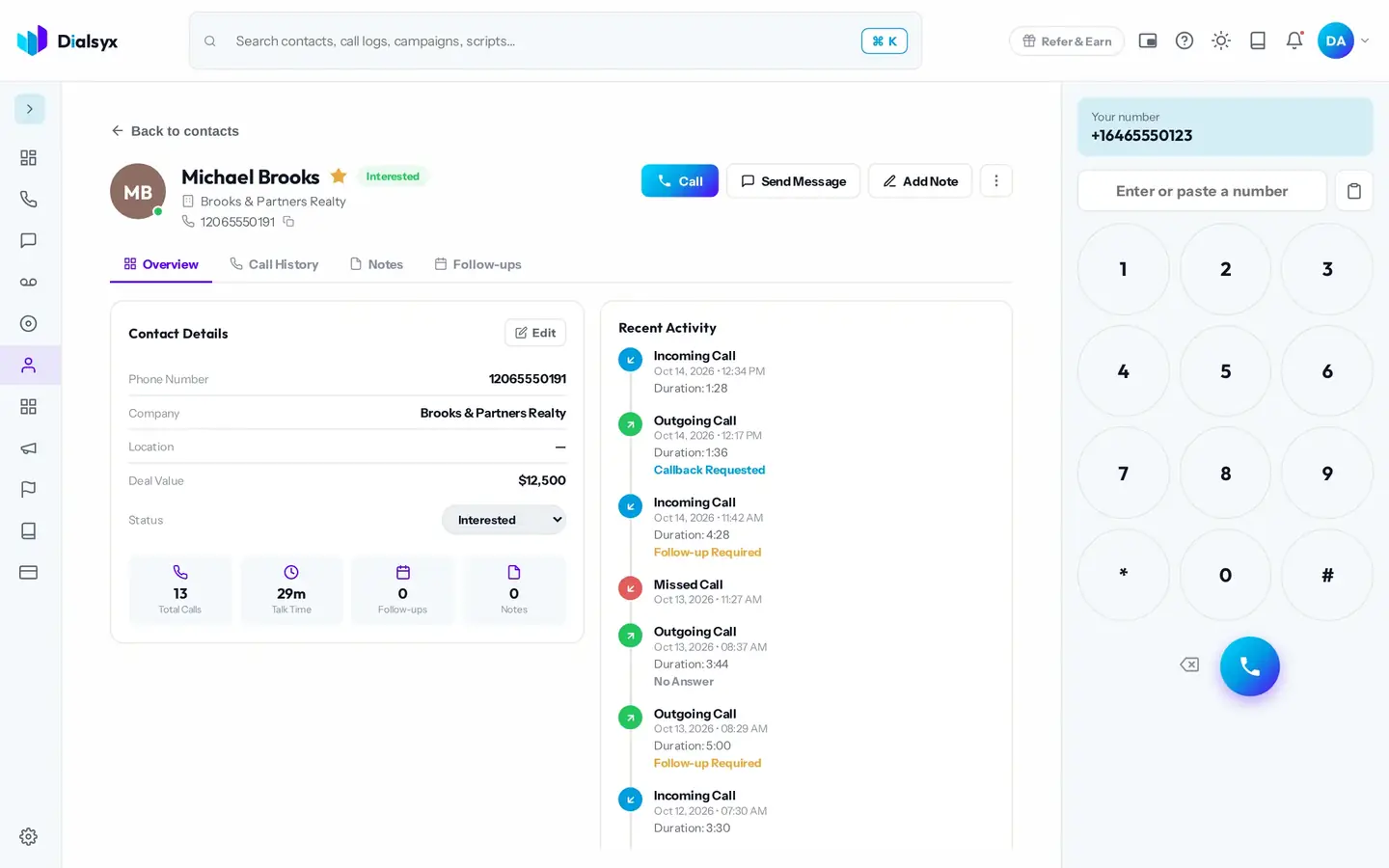
Mark a contact Do Not Call from their page or from a call.
The dialer shows the status on the contact page.
Respecting requests helps you meet the rules.
Real screens from the Dialsyx dialer.
The Do Not Call status is easy to see.
Choose Do Not Call as the outcome.
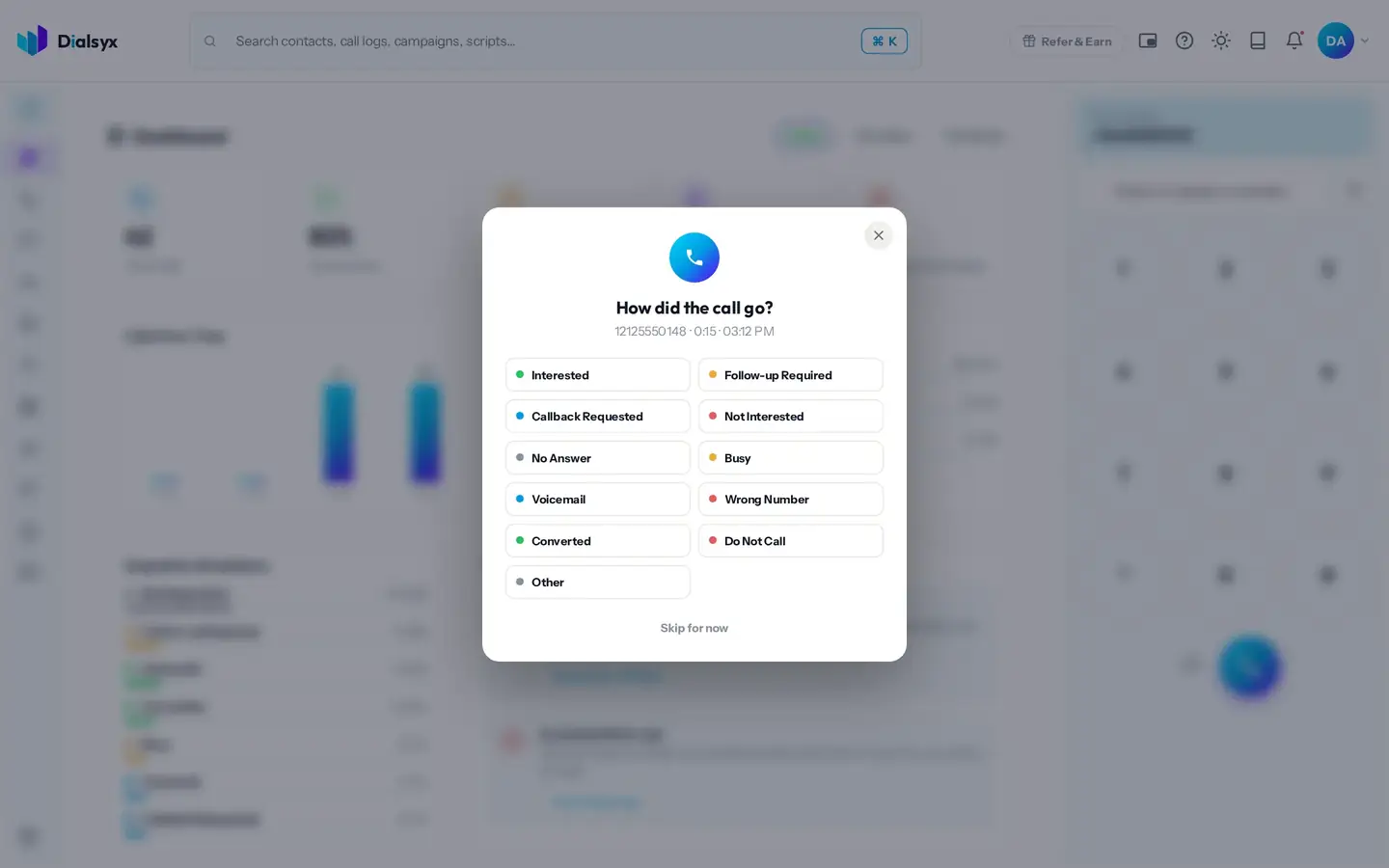
Keep your lists clean.
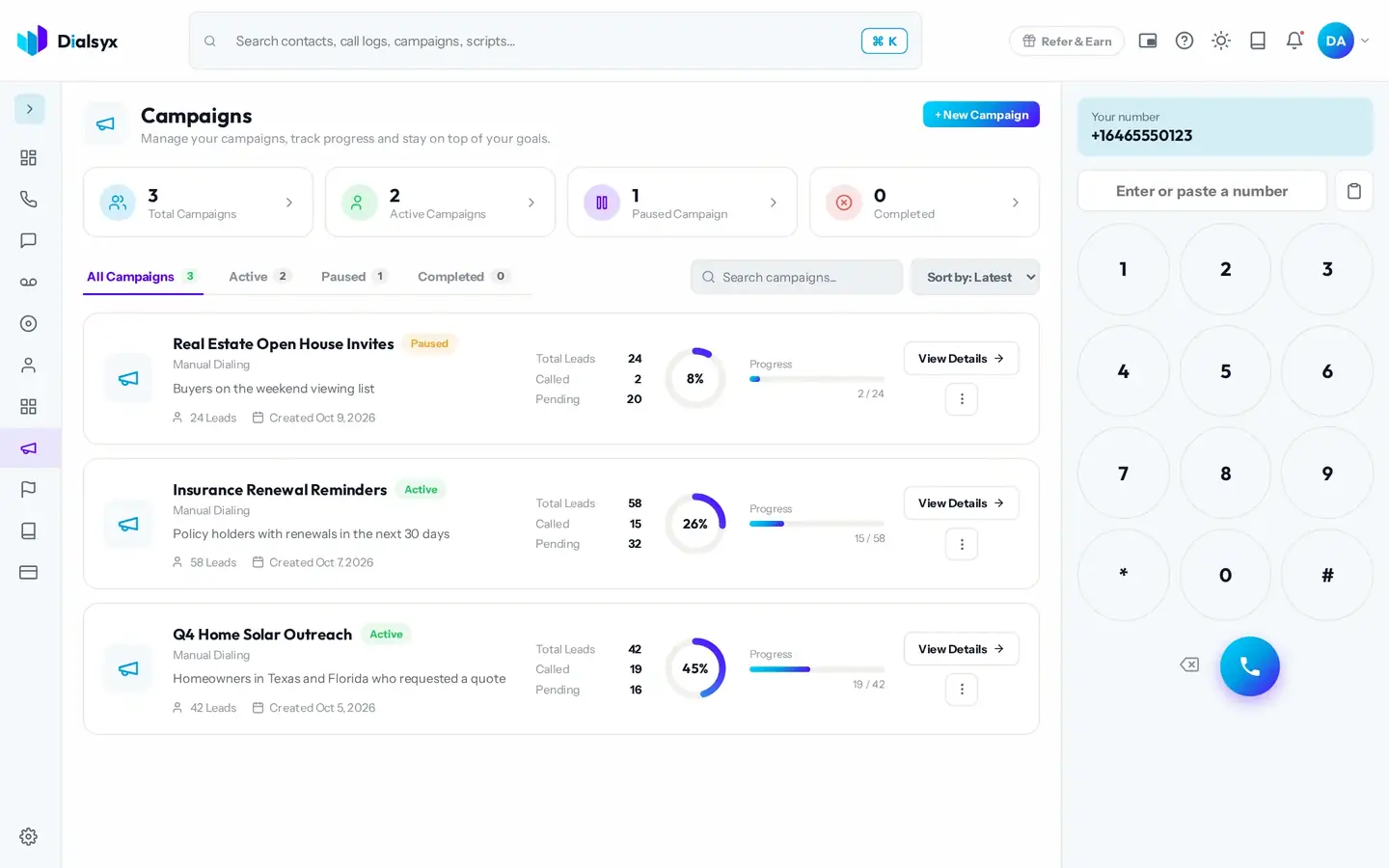
Step-by-step instructions with screenshots.
Dialsyx shows a clear Do Not Call banner. You remain responsible for respecting the request.
On the contact page, or choose Do Not Call as the outcome after a call.
Yes. After approval you can take a trial of a couple of hours or a demo meeting, case by case.
Guides that go with this page.
 Do Not Call lists explained for sales and outreach teamsCalling people who opted out can lead to complaints and fines. Learn how Do Not Call registers work and how to keep your lists clean.2 min read
 Cold calling tips for sales teams that respect the customerCold calling still works when it is relevant and respectful. Use these practical steps to get more conversations and fewer hang-ups.2 min read
 Call recording and consent: best practice for business teamsRecording calls helps with training and disputes, but consent rules differ by place. Learn a safe, simple routine your team can follow.2 min read